Philter Desktop
Philter Desktop is a Windows application that removes sensitive personal information from your documents. You give it a file (a plain-text note, a Microsoft Word document, or a PDF) and it produces a new, cleaned-up copy with things like names, Social Security numbers, phone numbers, addresses, and account numbers blacked out or replaced. Your original file is never touched; Philter Desktop always works on a separate copy.
This documentation is for the latest version of Philter Desktop
These pages always describe the newest release of Philter Desktop. If you are running an older
version, you can read the documentation that shipped with it on GitHub: open the
tags page, choose the tag that matches your
version (shown in Help → About), and browse its docs/docs folder.
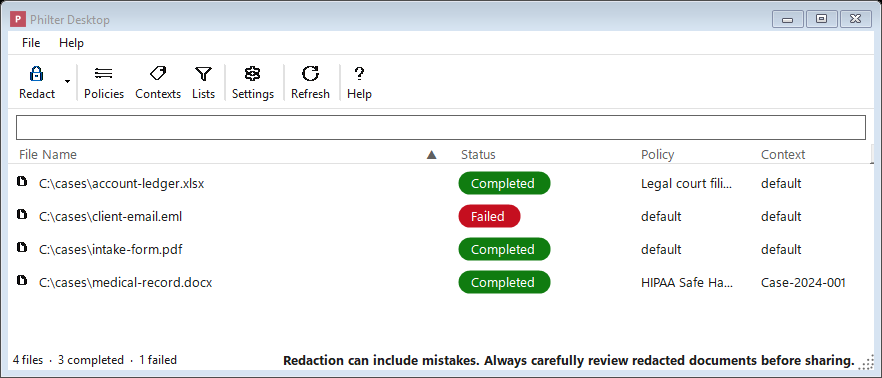
The main window: add documents and Philter Desktop redacts them in the background, showing each file's status.
A note on the word "redaction"
This guide uses the word redaction to mean removing or hiding sensitive information so that a document can be shared more safely. When you redact a deposition transcript, a medical record, a court filing, or a set of discovery documents, you take out the pieces that should not be seen by the other side, the public, or anyone who doesn't need them, while leaving the rest of the document intact and readable.
The sensitive pieces Philter Desktop looks for are often called personally identifiable information, or PII: information that could identify a specific person, such as a name, a date of birth, a home address, a Social Security number, a driver's license number, a bank account, or a medical record number.
What Philter Desktop does for you
- It reads text files (
.txt,.rtf), Microsoft Word documents (.docx), PDF files (.pdf), spreadsheets (.xlsx,.csv), and email (.eml,.msg). - It finds a wide range of sensitive information automatically: names, email addresses, phone numbers, Social Security numbers, credit-card and bank-account numbers, street addresses, dates, and many more (the full list is on the Supported Filters page).
- It lets you decide exactly what to remove and how to replace it, for example blacking
text out entirely, or swapping a real name for a stand-in label like
[NAME]. These choices are saved in something we call a policy. - It can keep replacements consistent across a stack of related documents, so that (for example) the same person is replaced with the same label everywhere they appear. This is handled by what we call a context.
- It works quietly in the background, showing you the progress of each file as it goes.
Who Philter Desktop is for
Philter Desktop is built for one person, working on their own computer. It is the right tool for a paralegal, an attorney, a records clerk, an investigator, a researcher, or anyone else who regularly needs to take sensitive details out of documents before sharing them, and who wants to review the result themselves before it goes out the door.
Everything happens on your own machine. Your documents are not uploaded anywhere, not sent to a website, and not shared with any outside service. This matters when you are handling privileged, confidential, or regulated material, and it is a deliberate design choice.
What Philter Desktop is not
- It is not a team or case-management system. There are no shared work queues, no assigning documents to colleagues, and no passing files back and forth for someone else to finish. Each person runs their own copy of Philter Desktop on their own documents.
- It is not an approval or sign-off system. Philter Desktop does not have built-in stages where
a supervisor reviews and approves your work, and it does not keep a formal, court-ready audit trail
of who did what. You are responsible for reviewing every redacted document before it leaves
your hands. This is exactly why every cleaned-up file is named with the word draft by default
(for example,
complaint_redacted-draft.pdf): the program is reminding you that the file is a first pass that still needs your eyes on it. - It is not a website or an always-on server. It is an ordinary desktop application that you open and use, like a word processor. It does not run a service that other programs or other people connect to.
How it works, in three steps
- Add your documents. Add files by clicking a button and choosing them, or by dragging them onto the window.
- Choose the rules. Each document is handled according to a policy (which decides what sensitive information to look for and how to replace it) and a context (which keeps replacements consistent across related files). Defaults are set up for you, so you can start without configuring anything.
- Get your cleaned-up copies. Philter Desktop creates a new copy of each document with the sensitive details removed, saves it to a location you choose, and leaves your original untouched. Always open and review the cleaned-up copy before you share it.
What a redaction looks like
Here is the same document before and after Philter Desktop: the sensitive details are detected and blacked out, while the rest of the document stays intact. (This example uses made-up data, not real personal information, and detection is configurable. Always review the result against your own documents.)
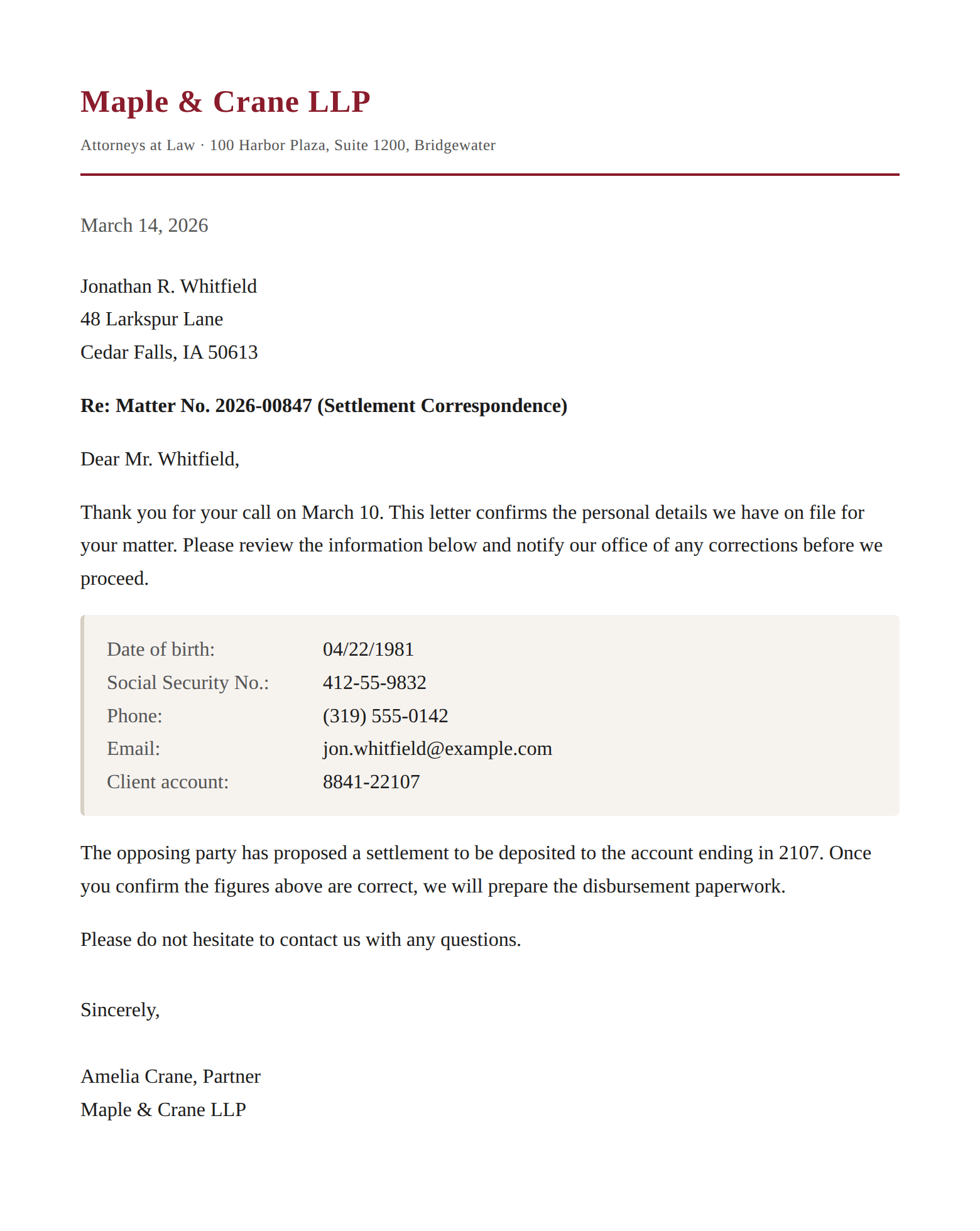
Before: the original document.
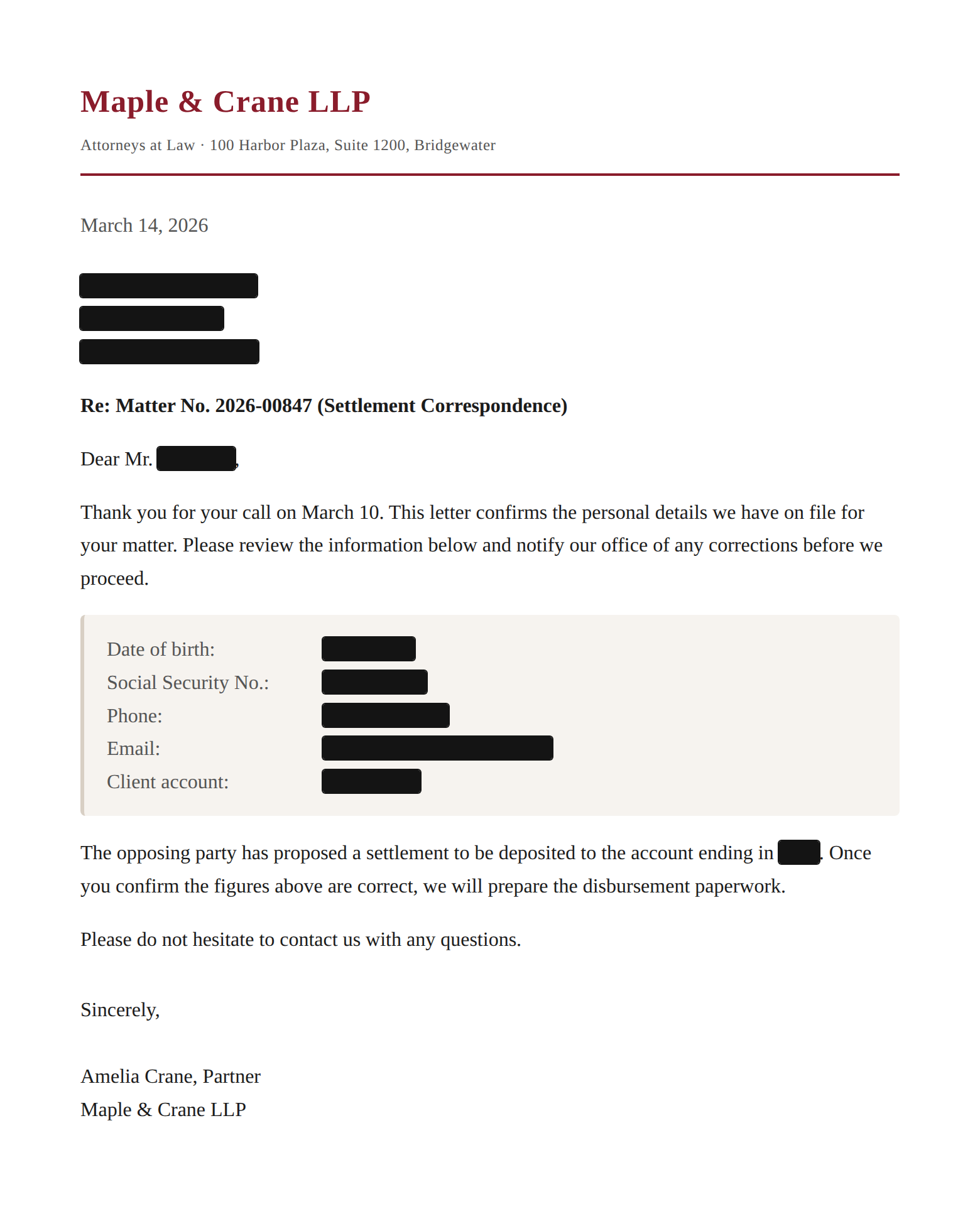
After: the redacted copy.
Where to go next
- Getting Started: how to install Philter Desktop and redact your very first document.
- Redacting Documents: the day-to-day guide to adding files, reviewing the results, and adjusting what was removed.
- Policies: how to set up the rules that decide what gets removed.
- Licensing & Support: free for personal use, a per-user subscription (including support) for commercial use, and how the open-source code fits in.