Watched Folders
A watched folder is a folder that Philter Desktop monitors. Whenever a new
.txt, .docx, .pdf, .rtf, .xlsx, .csv, .eml, or .msg file appears in that folder, Philter Desktop
redacts it automatically and saves the redacted copy to an output folder you've chosen, with no need to
add anything to the queue by hand. (A redacted .msg is saved as an .eml. See Email.)
This turns redaction into a "drop box" that runs itself: point a watched folder at where your scanner saves documents, at your Downloads folder, or at a shared network folder where colleagues drop files, and everything that lands there gets redacted automatically. It suits a steady stream of documents that all need the same treatment.
Creating a watched folder
Open Settings from the main toolbar, go to the Watched Folder tab, and click Add…. Fill in:
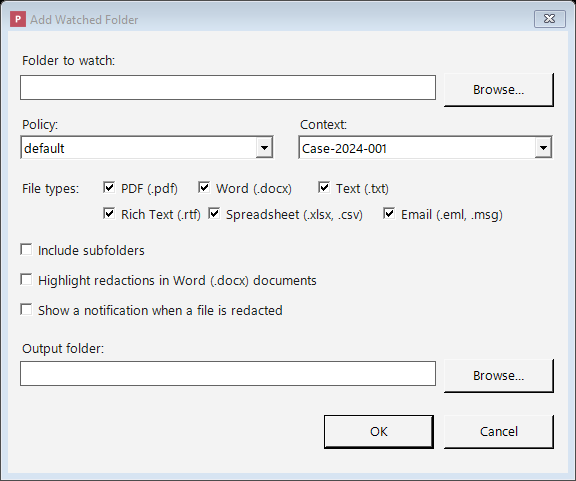
Creating a watched folder: choose the folder, its policy and context, which file types to redact, and where the cleaned-up copies go.
- Folder to watch: the folder to monitor for new files.
- Policy: the policy (set of rules) that decides what to remove and how, for files in this folder.
- Context: the context (consistency setting) to use for these files.
- File types: which of PDF (.pdf), Word (.docx), Text (.txt), Rich Text (.rtf),
Spreadsheet (.xlsx, .csv), and Email (.eml, .msg) to redact in this folder. Pick at least
one; other file types are ignored. (An
.msgdropped here becomes a redacted.emlin the output folder. Spreadsheets are redacted cell-by-cell with detection (including numeric cells such as an SSN or phone typed as plain digits). To remove whole columns, use Redact Spreadsheet… in the main window instead.) - Highlight redactions in Word (.docx) documents: when checked, replacements in redacted Word documents are highlighted so they are easy to spot during review.
- Show a notification when a file is redacted: when checked, a small pop-up appears near the clock as files in this folder are redacted (several at once are combined into one summary, and failures are reported too). Clicking the pop-up opens the output folder. These pop-ups are held back while the main Philter Desktop window is in front. Because this is set per folder, you can keep a busy folder quiet while still being notified about others. (Notifications also have a master on/off switch on the Notifications tab in Settings. If you turn notifications off there, this per-folder checkbox has no effect.)
- Include subfolders: when checked, files inside folders within the watched folder are monitored too, and the output mirrors that folder structure (so two files with the same name in different subfolders don't overwrite each other). If you turn this on, the output folder must be outside the watched folder. Hidden and system files and folders are skipped, and folders that are shortcuts to another location (junctions or symbolic links) are not followed, so watching can never reach outside the folder you chose. (To watch another folder, add it as its own watched folder.)
- Output folder: where the redacted copies are saved. This must be a different folder from the one being watched (otherwise the redacted files would themselves look like new files to redact). It also must be unique to this watched folder — two watched folders can't share one output folder (same-named files would overwrite each other) — and it must not be another watched folder or sit inside/around one (redacted files dropped into a watched folder would be redacted again). Philter Desktop checks these when you save and asks you to pick a different folder if they're violated.
Each watched folder has its own policy, context, highlight setting, and output folder, so you can watch several folders at once with completely different rules: for instance, one folder for medical records and another for financial documents.
To change a watched folder's settings later, select it and click Edit…. To stop watching a folder, select it and click Remove. Changes to the watched-folder list take effect immediately.
The watched-folder list has an Issues column that shows, at a glance, how many problems each folder has recorded — files that weren't redacted (shown in red, e.g. an unknown policy or a file over the size limit) and files redacted with a caveat (shown in amber, e.g. redacted without name detection). This is drawn from each folder's activity log, so it appears even if notifications and logging are turned off; select the folder and click View Log… to see the details. It's a reminder to check on folders that need attention rather than assuming everything was redacted.
How the automatic redaction works
- Which files are handled: only
.txt,.docx,.pdf,.rtf,.xlsx,.csv,.eml, and.msgfiles are redacted; everything else in the folder is left alone. (A redacted.msgis saved as an.eml.) - What the copies are named: redacted copies are saved to the output folder with the usual
label (by default
_redacted-draft, soinvoice.pdfbecomesinvoice_redacted-draft.pdf). Your originals are never changed. - Files already in the folder: at startup, Philter Desktop also picks up files that were already in a watched folder, not just files added afterward.
- No redacting the same file twice: output files are themselves ignored, so they're never redacted again, and a file that's already been redacted is skipped unless it changes.
- Large or still-arriving files: if a file is still being copied or downloaded, Philter Desktop waits until it has fully arrived before redacting it, so it never works on a half-written file.
- One at a time, by default: watched files are redacted one at a time, so memory use stays low and predictable: only a single document is ever loaded at once. (See the setting below to change this.)
Processing more than one file at a time
By default Philter Desktop redacts watched-folder files one at a time. On the Watched Folders tab in Settings, the option "Watched-folder files to redact at once" raises this to up to 4. If you routinely drop in lots of small files (say, exported records), allowing 2–4 at once finishes the batch faster.
Two things make this safe to raise:
- Big files still run alone. Any file over 50 MB is always redacted by itself, so a large, memory-heavy document can never pile on top of other work.
- It only affects watched folders; the main window's queue and one-off redactions are unchanged.
Change this setting only with careful consideration
Leave this at 1 unless you have a specific reason to change it. Running several redactions at once uses more memory and more processor (each file in progress is held in memory while it's redacted), and on-device name detection is demanding too. On a modest machine, or with larger documents, a higher number can make the whole computer feel slow or, in extreme cases, run out of memory. Raise it gradually (try 2 first), watch how your machine copes, and lower it again if anything struggles. When in doubt, 1 is the safe choice.
The activity log
Every watched folder keeps its own activity log so you can confirm nothing was missed. On the Watched Folder tab, select a folder and click View Log…. With timestamps, the log shows:
- when a file was found,
- when it was redacted, and where the redacted copy was saved,
- when a file was skipped (because it had already been redacted),
- any warnings (shown in amber) — for example, a file redacted without name detection because the on-device name model isn't installed; the file is still redacted for everything else, but person names may remain, so review it (the notification also flags this), and
- any errors (shown in red).
The log window has a Refresh button to load the latest activity and a Clear Log button to empty it. Entries stay until you clear the log or remove the folder, and anything older than 30 days is removed automatically.
Working quietly in the background (the system tray)
To keep watching your folders without a window on screen, Philter Desktop can hide itself in the Windows system tray, the row of small icons near the clock:
- Closing the window (clicking the X) does not quit the program; it hides it to the tray, and watching keeps running. The first time this happens, a pop-up explains it.
- Double-click the tray icon to bring the main window back. (Launching Philter Desktop again — from the Start menu, a shortcut, or the taskbar — does the same: it brings the already-running window to the front rather than opening a second copy. Only one Philter Desktop window runs at a time.)
- Right-click the tray icon for a short menu:
- Open Philter Desktop: reopen the window.
- Pause watching / Resume watching: temporarily stop or restart automatic monitoring.
- Exit: fully close the program and stop watching.
If you choose Exit while documents are still being redacted or waiting in the queue, Philter Desktop warns you first and lets you stay open so that work can finish. (Closing the window with the X is always safe: it only hides to the tray, and any in-progress redactions keep running.)
Whenever Philter Desktop is running, even when it's only in the tray, all of your watched folders are being monitored.
Starting automatically when you sign in
To have Philter Desktop watch your folders even after a restart, turn on Start Philter Desktop at sign-in on the General tab of Settings. It then launches whenever you sign in to Windows and resumes watching where it left off.
Things to keep in mind
- Watching only happens while you are signed in to Windows. Unattended, always-on redaction on a server (running even when nobody is logged in) would need a Windows service, which Philter Desktop does not currently provide.
- The output folder must always be different from the folder being watched, unique to that watched folder, and not inside (or the same as) any watched folder.
- Just like PDFs you redact by hand, redacted PDFs from a watched folder are flattened to images, so the removed text cannot be recovered.